Estimated time: 1 minute
If your apple search ads account is not integrated, you should see a button "Setup Apple Search Ads Integration." Once you click on it, you should be able to see an option to "Sign in with Apple." Select this to integrate your account.
Step 1: Click on the "Sign in with Apple" button from the Integration page.
Step 2: You should now see a dialog that says "Use your Apple Account to authorize AppStance", which allows Apple to securely connect Apple Ads with AppStance.
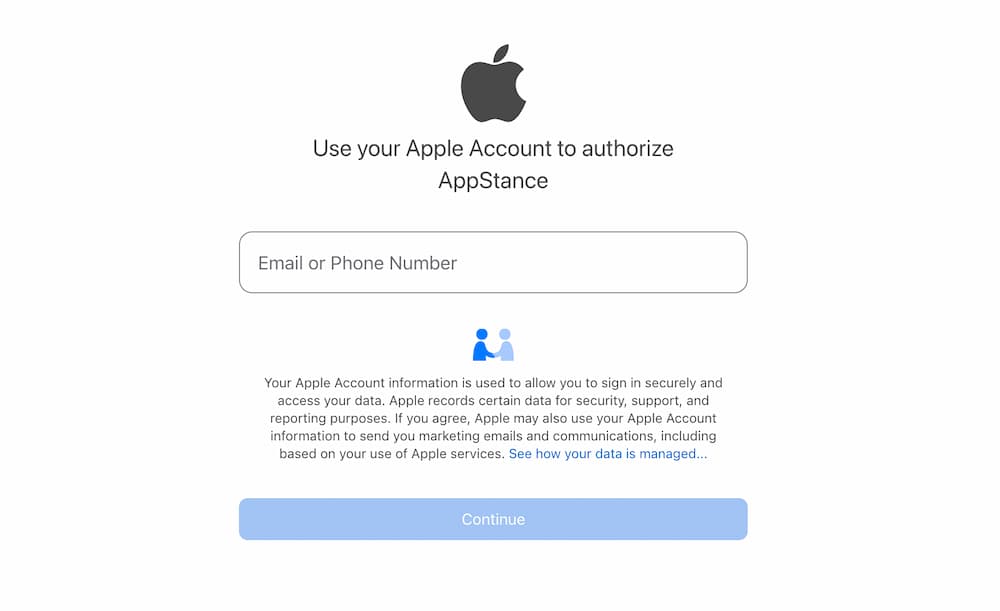
Step 3: Enter the Apple id credentials used for your Apple search ads admin/main account. You may need to complete 2 factor authentication.
Step 4: Select "Account Read & Write" permission and click on "Grant Access"
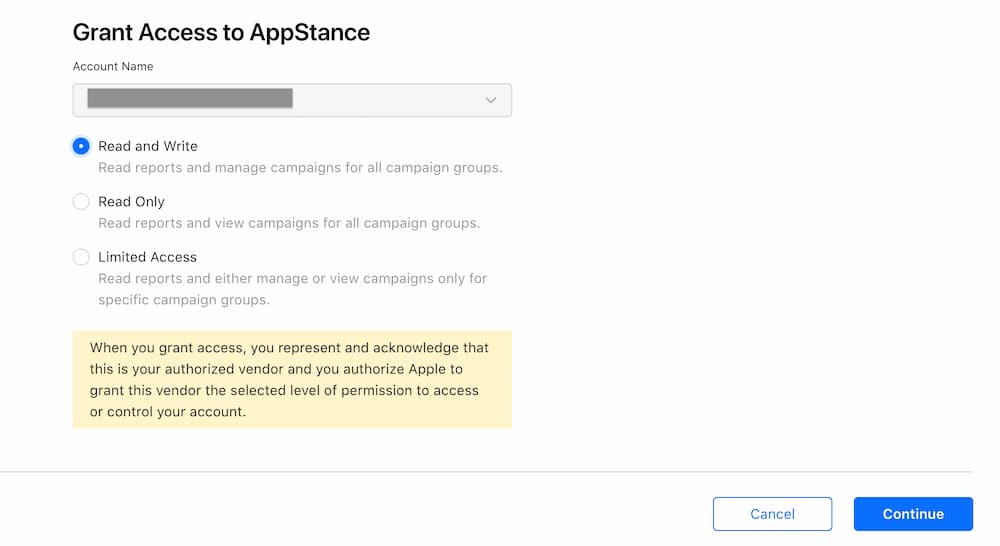
Step 5: From the dialog box "Grant API access", click on "Yes".
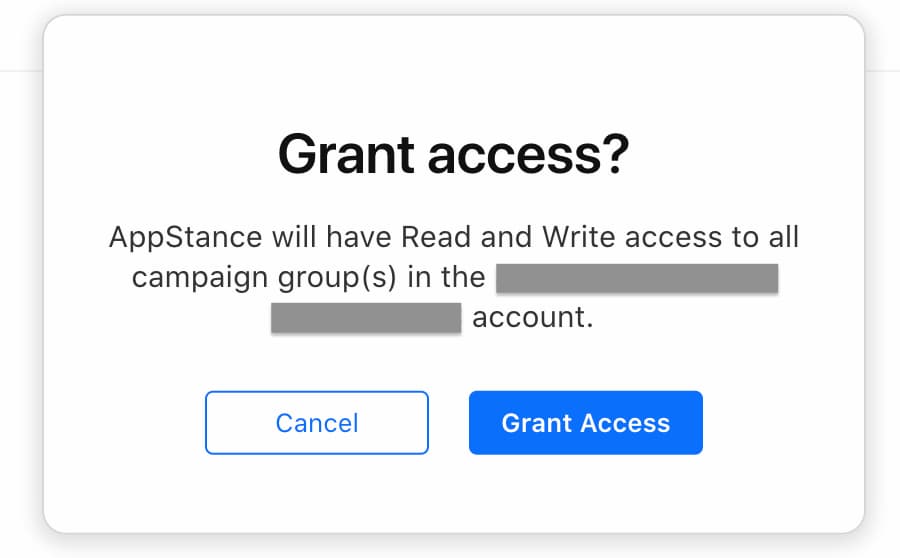
Step 6: That's it. If everything goes well, you should be able to see a success message after few minutes depending on your Apple Search Ads data. Now you can start using the AppStance Optimize Dashboard and Optimizer.
Optional
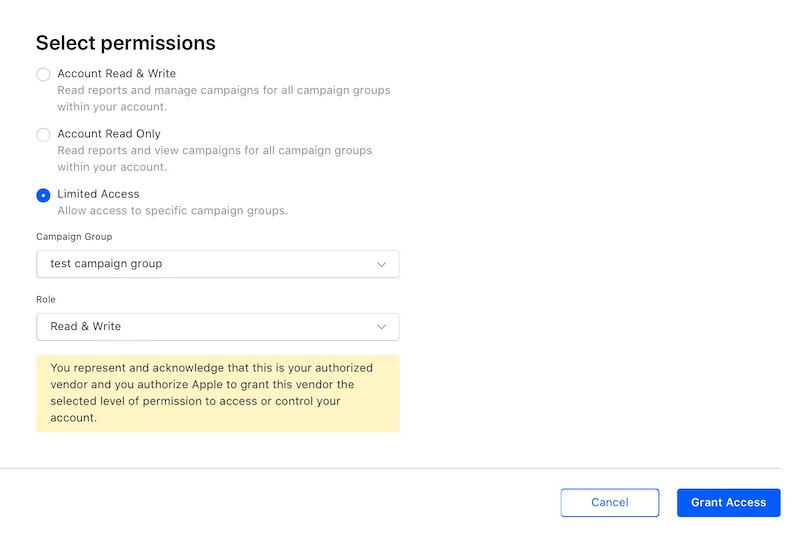
If you are an agency or user with multiple campaign groups, you have an option to select "Limited Access" and choose campaign groups that you can grant access to. In that case, select the role "Read & Write". If you would ever like to add another campaign group to your AppStance Optimize account, you would need to contact us for the process of reintegrating your Apple search ads account.